Guide: Installing Oh My Zsh & Powerlevel10k on macOS
If you're running Python scripts, managing Git repos for your tooling, and switching between virtual environments for different parsers, a terminal that gives context can help with your work.
This guide sets up Oh My Zsh with Powerlevel10k on the native macOS Terminal.app, then adds the plugins.
Why This Matters for Forensic Work
The default macOS Zsh prompt tells you almost nothing. It shows your current directory and that's it. When you're:
- Running Python scripts from inside a case directory three levels deep
- Working across multiple Git branches in your DFIR tools repo
- Switching Python virtual environments between different parsers
- Checking whether your last collection script exited cleanly or threw an error
This helps if you want that information visible in your prompt without running a separate command.
Step 1: Install Oh My Zsh
Oh My Zsh is the framework that manages your Zsh configuration, themes, and plugins.
sh -c "$(curl -fsSL https://raw.githubusercontent.com/ohmyzsh/ohmyzsh/master/tools/install.sh)"Action: When prompted to change your default shell to Zsh, type Y.
Step 2: Install Powerlevel10k Theme
Clone the theme into your Oh My Zsh custom themes folder:
git clone --depth=1 https://github.com/romkatv/powerlevel10k.git ${ZSH_CUSTOM:-$HOME/.oh-my-zsh/custom}/themes/powerlevel10kThen activate it. Open your config:
nano ~/.zshrcFind ZSH_THEME="robbyrussell" and replace it with:
ZSH_THEME="powerlevel10k/powerlevel10k"Save and exit: Ctrl+O, Enter, Ctrl+X.
Step 3: Fix Missing Icons (Force-Install Nerd Fonts)
If the P10k wizard doesn't offer to install fonts, or you see square boxes instead of symbols, install the MesloLGS Nerd Fonts manually. Run these four commands:
curl -L https://github.com/romkatv/powerlevel10k-media/raw/master/MesloLGS%20NF%20Regular.ttf -o ~/Library/Fonts/"MesloLGS NF Regular.ttf"
curl -L https://github.com/romkatv/powerlevel10k-media/raw/master/MesloLGS%20NF%20Bold.ttf -o ~/Library/Fonts/"MesloLGS NF Bold.ttf"
curl -L https://github.com/romkatv/powerlevel10k-media/raw/master/MesloLGS%20NF%20Italic.ttf -o ~/Library/Fonts/"MesloLGS NF Italic.ttf"
curl -L https://github.com/romkatv/powerlevel10k-media/raw/master/MesloLGS%20NF%20Bold%20Italic.ttf -o ~/Library/Fonts/"MesloLGS NF Bold Italic.ttf"
Then activate the font in Terminal.app:
- Quit Terminal completely (
Cmd + Q) and reopen it - Press
Cmd + ,to open Settings - Go to Profiles → Text
- Under Font, click Change — search for
MesloLGS NFand select it - Close Settings
Step 4: Run the Configuration Wizard
p10k configureWhen it asks whether each symbol renders correctly, you should now see actual glyphs instead of boxes. Answer y for each. The Rainbow style gives the best at-a-glance context for multi-component prompts.
Step 5: DFIR-Specific Plugins and Aliases
This is where the setup becomes relevant to forensic work rather than just looking nice.
Recommended Plugins
Open ~/.zshrc and find the plugins=() line. Update it:
plugins=(git python brew colored-man-pages zsh-syntax-highlighting zsh-autosuggestions)Install the two community plugins that aren't bundled with Oh My Zsh:
git clone https://github.com/zsh-users/zsh-syntax-highlighting.git ${ZSH_CUSTOM:-~/.oh-my-zsh/custom}/plugins/zsh-syntax-highlighting
git clone https://github.com/zsh-users/zsh-autosuggestions ${ZSH_CUSTOM:-~/.oh-my-zsh/custom}/plugins/zsh-autosuggestions
Why these matter for DFIR:
- git — Shows branch and dirty/clean status inline. When you're pushing parser updates or tracking changes to triage scripts, this is ambient context with no extra commands.
- python — Displays the active virtualenv name in your prompt. Running scripts in isolated environments is the right practice; this makes it visible at all times.
- zsh-syntax-highlighting — Commands turn green when valid, red when not. Catches typos in long forensic commands before you execute them.
- zsh-autosuggestions — Suggests previous commands as you type. Saves re-typing long script invocations with full case directory paths.
- colored-man-pages — Colors
manpage output. Useful when referencing tool flags during an active investigation.
Useful DFIR Aliases
Add these to the bottom of ~/.zshrc. Adjust paths to match your case and tools directories:
# --- DFIR Aliases ---

# Navigate to active case directory quickly
alias case='cd ~/Cases'

# Python virtual environment shortcuts
alias ve='python3 -m venv venv'
alias va='source venv/bin/activate'

# Quick hash verification
alias sha256='shasum -a 256'
alias md5='md5 -r'

# Reload .zshrc after edits
alias reload='source ~/.zshrc'
Apply all changes:
source ~/.zshrcWhat You Get
After this setup, your prompt surfaces: current directory, active Git branch with clean/dirty status, Python virtualenv name, exit code of the last command, and execution time for commands over a threshold. For a forensic examiner running custom Python scripts and managing tool repos, this replaces several git status and which python3 commands you'd otherwise run manually throughout a session.
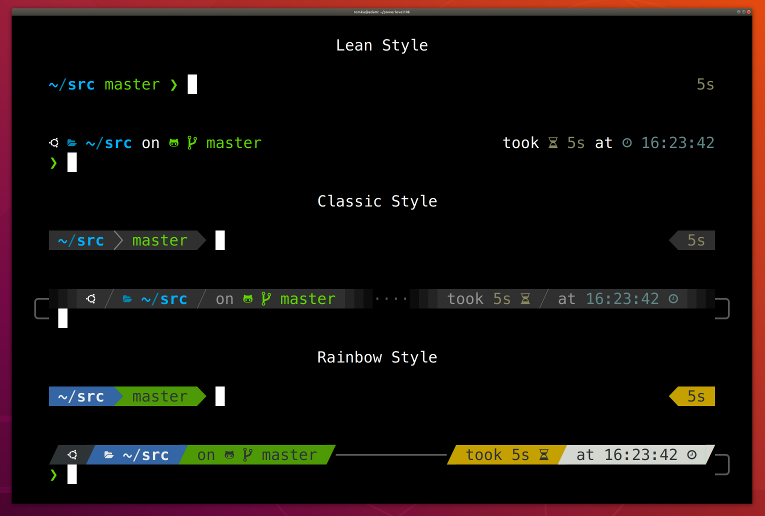
Lean, Classic, and Rainbow prompt styles. Rainbow (bottom) is recommended for the most context at a glance.
Tool source and additional DFIR scripts: github.com/dynamicallystatic

No comments:
Post a Comment