Wednesday, June 5, 2019

Sticky Notes Location (part 2) - restoring from Volume Shadow Copies

6/5/2019
Volume Shadow Copy (also known as Volume Snapshot Service or VSS ) is a technology included in Microsoft Windows. It allows the ability to take backup copies or snapshots of computer files or volumes whether in use or not. The process can be operated manually or automatically.

Can be used to view read only snapshot points in time.

How to turn on Volume Shadow Copies:

  1. Type restore in the windows search menu
  2. Select create restore point

     3.  Select Configure


4.  Turn on system protection


   5. Create is enabled as an option and name it


Success


CURRENT STICKY NOTE


USING VOLUME SHADOW COPIES TO VIEW RESTORED STICKY NOTES


Opening a CMD prompt with admin privileges 


Typing "vssadmin list shadows"


Using the Shadow Copy Volume field for the make link command
Typing "mklink /d outputvolume \\?\GLOBALROOT\Device\HarddiskVolumeShadowCopy1\"  *including the trailing back slash at the end of the Shadow Copy Volume name

mklink command /d <source><destination>


Linked Volume is now there


PATHING TO THE "plum.sqlite" file related to Sticky Notes


"Users\<Username>\AppData\Local\Packages\Microsoft.MicrosoftStickyNotes_8wekyb3d8bbwe\LocalState"


Using DB Browser to view SQLITE file
dowload from site:  https://sqlitebrowser.org/dl/


After copying the plite file to the another directory out of the mklinked directory, can open and view the deleted entry that was saved in the restored point shadow copy.


*Can also run strings on "plum.sqlite-wal" in the LocalState folder from the VS copy

strings .\plum.sqlite-wal


--Bryan


Sunday, June 2, 2019

Windows 10 Sticky Notes Location

Sticky Notes


  • Can be retrieved and located in a sqlite file "plum.sqlite"


File path:

%LocalAppData%\Packages\Microsoft.MicrosoftStickyNotes_8wekyb3d8bbwe\LocalState\plum.sqlite


  • Viewing the "plum.sqlite" in a SQLite viewer
(Navicat for SQLite)
https://www.navicat.com/en/products/navicat-for-sqlite
  • Add caption

Notes:
  • Database file is edited once a sticky note is changed.  
  • And new notes are saved and old ones are not in the "plum.sqlite" file.


NEXT POST:

WILL DELETE THE MISSILE LAUNCH CODES FROM THE STICKY NOTE AND TRY AND RETRIEVE THEM FROM A VOLUME SHADOW COPY.

-STAY TUNED

BRYAN


Wednesday, May 22, 2019

Windows 10 - May 2019 Update (version 1903)

Just downloaded the  May 2019 Update (version 1903)

First off, noticed you can now uninstall the following inbox apps:
  • 3D Viewer.
  • Calculator.
  • Calendar.
  • Groove Music.
  • Mail and Calendar.
  • Movies & TV.
  • Paint 3D.
  • Snip & Sketch.
  • Sticky Notes.
  • Voice Recorder.
  • Microsoft Solitaire Collection.
  • My Office.
  • OneNote.
  • Print 3D.
  • Skype.
  • Tips.
  • Weather.
Can all now be uninstalled

Goodbye Groove Music


  • ALSO NEWish FEATURE slash me seeing it just now in this build(although was introduced previously)  
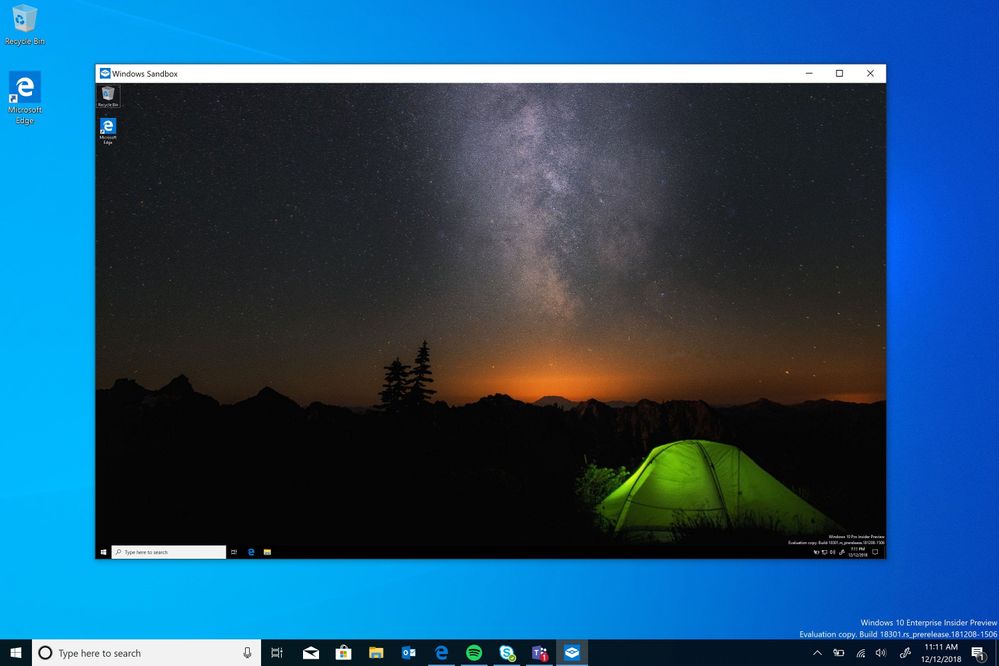
Windows Sandbox
Touts as using virtualization for kernel isolation, memory management, virtual GPU.  And
a lightweight Win10 VM.


Stripped down version of windows that runs in the OS
Windows Sandbox Screenshot - open.jpg


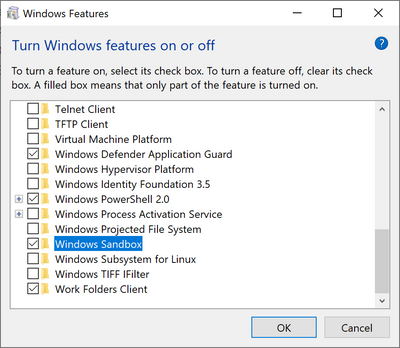
Optional Windows Features dlg.png
To turn on in Windows features


The Application executable is located in
"%windir%\system32\WindowsSandbox.exe"

Gonna try and see if any artifacts are left behind, although I think it may be tricky because it is described as working similar to a kernel based hyper-visor and being isolated.


Also this window pops up when closing
Content is "permanently" lost?


But curious to see if there is remnants of the sandbox in memory and may test in future blog.


--Bryan


To download 1903 BUILD:
https://www.microsoft.com/en-us/software-download/windows10?ranMID=24542&ranEAID=TnL5HPStwNw&ranSiteID=TnL5HPStwNw-f4J_SoxhLxJJuz99FPlAlw&epi=TnL5HPStwNw-f4J_SoxhLxJJuz99FPlAlw&irgwc=1&OCID=AID681541_aff_7593_1243925&tduid=(ir__ke2ohvb99gkfritzkk0sohzn0m2xmeafzvvoul9e00)(7593)(1243925)(TnL5HPStwNw-f4J_SoxhLxJJuz99FPlAlw)()&irclickid=_ke2ohvb99gkfritzkk0sohzn0m2xmeafzvvoul9e00


Reference for Windows Sandbox:
https://techcommunity.microsoft.com/t5/Windows-Kernel-Internals/Windows-Sandbox/ba-p/301849/page/2

Sunday, May 19, 2019

NIST data sets on Magnet AXIOM - Examine


Continued from Magnet AXIOM Process post
https://www.datadigitally.com/2019/05/processing-image.html

This post will be looking at the processed image from NIST data sets regarding a data leakage case from the Computer Forensics Reference Data Sets Project(CFReDS).
Found at:
https://www.cfreds.nist.gov/data_leakage_case/data-leakage-case.html


Opening Magnet AXIOM Examine and selecting the recent processed case


Magnet Axiom Examine - Home page

Drop down for different tabs in the home menu


Artifacts tab, tree pane view, within Axiom Examine


File system, tree pane, view.  2 partitions, System Reserved and C


Questions
  • What are the hash values (MD5 & SHA-1) of all images?


cfreds_2015_data_leakage_pc.E01
72432916933F5A309A8C456B40C9601D1F8D2A4F
cfreds_2015_data_leakage_pc.E02
0CAF4261ED8432A8B3BAA019B1B28FDF96F79130
cfreds_2015_data_leakage_pc.E03
BE836C891736C4C0C2253C6803399BF0F2A599BA
cfreds_2015_data_leakage_pc.E04
9159BFFD56097495F73FBBF967B75EB288B1E3DE


  •        Identify the partition information of PC image?


  •        Explain installed OS information in detail.
    (OS name, install date, registered owner…)?

In the artifacts tab, drilling down to Operating System Information


OS information(Windows 7 Ultimate, 3/22/2015 install date, Owner is informant)


  •        What is the timezone setting?

Eastern Standard Time, gathered from registry


  • Who was the last person to logon to the PC?
Because this is Win 7, it is located in the registry at:
HKLM\Software\Microsoft\Windows\CurrentVersion\Authentication\LogonUI\

LastLoggedOnUser
Registry Key for Last Logged on


  • What application was last installed?
Eraser has the most recent created date in the Installed Programs


  • Identify web related history

Web Related items include artifacts from Chrome History file and Edge\IE Webcache file


Search Terms in Google Web related item


  • When was the last recorded shutdown date/time?

HKLM\SYSTEM\ControlSet###\Control\Windows (value: ShutdownTime)

Pathing to registry key value and highlighting the hex


Decode section to read the decoded time 


  • What are some artifacts of recent execution?

Jump Lists sorted off recent Last Access time


Link files showing activity to a D: drive, a share drive, and cloud drive services


In the NTUSER.DAT location of "Software\Microsoft\Windows\CurrentVersion\Explorer\RecentDocs\Folder"


Decoded to Unicode


Shellbags indicating access to a C:, D:, and share drive


  • What was written on the recent sticky note?
In Win7 it is located here: 
"\Users\informant\AppData\Roaming\Microsoft\Sticky Notes\StickyNotes.snt"
Tomorrow ... Everything will be OK


NIST has kindly posted the solutions for the case.
And can be found at
https://www.cfreds.nist.gov/data_leakage_case/leakage-answers.pdf

It shows in better detail about the data leakage included with USB images that I did not include.  As well as looking at email artifacts and a burnt CD.

I do commend and thank NIST for making this and found it to be a fun resource.

--Bryan