Friday, June 14, 2019

Windows PowerShell Transcription Logs

How to turn on PowerShell Transcription Logging:


From the Windows Local Group Policy Editor, details of policy:
At least Microsoft Windows 7 or Windows Server 2008 family.
"This policy setting lets you capture the input and output of Windows PowerShell commands into text-based transcripts.
If you enable this policy setting, Windows PowerShell will enable transcripting for Windows PowerShell, the Windows PowerShell ISE, and any other applications that leverage the Windows PowerShell engine. 

By default, Windows PowerShell will record transcript output to each users' My Documents directory, with a file name that includes 'PowerShell_transcript', along with the computer name and time started. 

Enabling this policy is equivalent to calling the Start-Transcript cmdlet on each Windows PowerShell session.

If you disable this policy setting, transcripting of PowerShell-based applications is disabled by default, although transcripting can still be enabled through the Start-Transcript cmdlet.
        
If you use the OutputDirectory setting to enable transcript logging to a shared location, be sure to limit access to that directory to prevent users  from viewing the transcripts of other users or computers.

Note: This policy setting exists under both Computer Configuration and User Configuration in the Group Policy Editor. The Computer Configuration policy setting takes precedence over the User Configuration policy setting."


1.  Windows key run --> gpedit.msc


2.   Navigate to: 
Computer Configuration – Administrative Templates – Windows Components –     Windows PowerShell and double-klick “Turn on PowerShell Transcription”.


Click on Enable and enter your preferred Output Directory. (include invocation headers will log the PS command start time)  

The transcript was manually picked to be at C:\PS_Transcripts.  Can output to anywhere, for instance a share server or log server.


3.  The transcript file will now be created in the selected output directory


Above is the PS transcript with the starttime, username, host, and scripts that was ran, with output


--Bryan


Saturday, June 8, 2019

DFIR GEAR: Forensicate in Style

https://dfir.com/

Came across this cool site (https://dfir.com/) that has some neat shirts.
Shirts for Men, Women, and also sells posters.  That ship to the US.

My personal fav:
Kudos for the Wolverine reference


https://dfir.com/
The site has written that "All proceeds go to Girls Who Code"
https://girlswhocode.com/  
"We’re building the largest pipeline of future
female engineers in the United States."

Which looks like a awesome cause.


--Bryan


Wednesday, June 5, 2019

Sticky Notes Location (part 2) - restoring from Volume Shadow Copies

6/5/2019
Volume Shadow Copy (also known as Volume Snapshot Service or VSS ) is a technology included in Microsoft Windows. It allows the ability to take backup copies or snapshots of computer files or volumes whether in use or not. The process can be operated manually or automatically.

Can be used to view read only snapshot points in time.

How to turn on Volume Shadow Copies:

  1. Type restore in the windows search menu
  2. Select create restore point

     3.  Select Configure


4.  Turn on system protection


   5. Create is enabled as an option and name it


Success


CURRENT STICKY NOTE


USING VOLUME SHADOW COPIES TO VIEW RESTORED STICKY NOTES


Opening a CMD prompt with admin privileges 


Typing "vssadmin list shadows"


Using the Shadow Copy Volume field for the make link command
Typing "mklink /d outputvolume \\?\GLOBALROOT\Device\HarddiskVolumeShadowCopy1\"  *including the trailing back slash at the end of the Shadow Copy Volume name

mklink command /d <source><destination>


Linked Volume is now there


PATHING TO THE "plum.sqlite" file related to Sticky Notes


"Users\<Username>\AppData\Local\Packages\Microsoft.MicrosoftStickyNotes_8wekyb3d8bbwe\LocalState"


Using DB Browser to view SQLITE file
dowload from site:  https://sqlitebrowser.org/dl/


After copying the plite file to the another directory out of the mklinked directory, can open and view the deleted entry that was saved in the restored point shadow copy.


*Can also run strings on "plum.sqlite-wal" in the LocalState folder from the VS copy

strings .\plum.sqlite-wal


--Bryan


Sunday, June 2, 2019

Windows 10 Sticky Notes Location

Sticky Notes


  • Can be retrieved and located in a sqlite file "plum.sqlite"


File path:

%LocalAppData%\Packages\Microsoft.MicrosoftStickyNotes_8wekyb3d8bbwe\LocalState\plum.sqlite


  • Viewing the "plum.sqlite" in a SQLite viewer
(Navicat for SQLite)
https://www.navicat.com/en/products/navicat-for-sqlite
  • Add caption

Notes:
  • Database file is edited once a sticky note is changed.  
  • And new notes are saved and old ones are not in the "plum.sqlite" file.


NEXT POST:

WILL DELETE THE MISSILE LAUNCH CODES FROM THE STICKY NOTE AND TRY AND RETRIEVE THEM FROM A VOLUME SHADOW COPY.

-STAY TUNED

BRYAN


Wednesday, May 22, 2019

Windows 10 - May 2019 Update (version 1903)

Just downloaded the  May 2019 Update (version 1903)

First off, noticed you can now uninstall the following inbox apps:
  • 3D Viewer.
  • Calculator.
  • Calendar.
  • Groove Music.
  • Mail and Calendar.
  • Movies & TV.
  • Paint 3D.
  • Snip & Sketch.
  • Sticky Notes.
  • Voice Recorder.
  • Microsoft Solitaire Collection.
  • My Office.
  • OneNote.
  • Print 3D.
  • Skype.
  • Tips.
  • Weather.
Can all now be uninstalled

Goodbye Groove Music


  • ALSO NEWish FEATURE slash me seeing it just now in this build(although was introduced previously)  
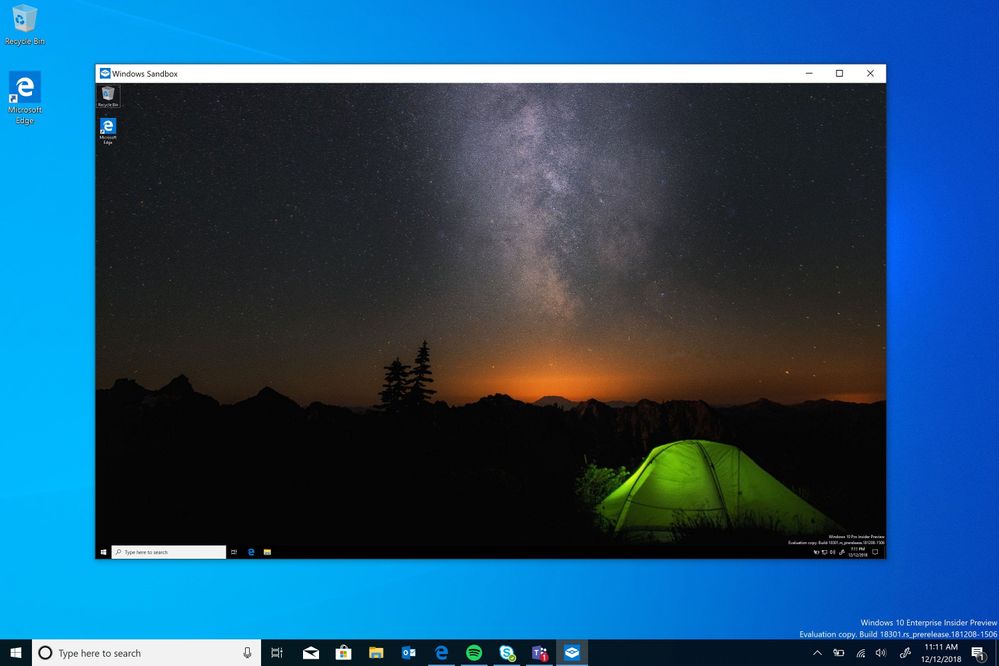
Windows Sandbox
Touts as using virtualization for kernel isolation, memory management, virtual GPU.  And
a lightweight Win10 VM.


Stripped down version of windows that runs in the OS
Windows Sandbox Screenshot - open.jpg


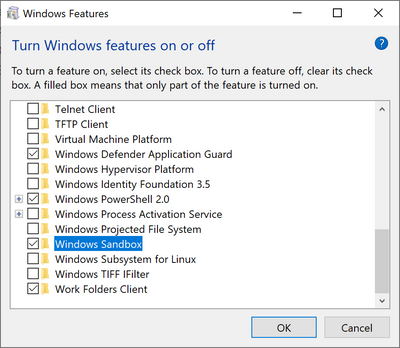
Optional Windows Features dlg.png
To turn on in Windows features


The Application executable is located in
"%windir%\system32\WindowsSandbox.exe"

Gonna try and see if any artifacts are left behind, although I think it may be tricky because it is described as working similar to a kernel based hyper-visor and being isolated.


Also this window pops up when closing
Content is "permanently" lost?


But curious to see if there is remnants of the sandbox in memory and may test in future blog.


--Bryan


To download 1903 BUILD:
https://www.microsoft.com/en-us/software-download/windows10?ranMID=24542&ranEAID=TnL5HPStwNw&ranSiteID=TnL5HPStwNw-f4J_SoxhLxJJuz99FPlAlw&epi=TnL5HPStwNw-f4J_SoxhLxJJuz99FPlAlw&irgwc=1&OCID=AID681541_aff_7593_1243925&tduid=(ir__ke2ohvb99gkfritzkk0sohzn0m2xmeafzvvoul9e00)(7593)(1243925)(TnL5HPStwNw-f4J_SoxhLxJJuz99FPlAlw)()&irclickid=_ke2ohvb99gkfritzkk0sohzn0m2xmeafzvvoul9e00


Reference for Windows Sandbox:
https://techcommunity.microsoft.com/t5/Windows-Kernel-Internals/Windows-Sandbox/ba-p/301849/page/2